

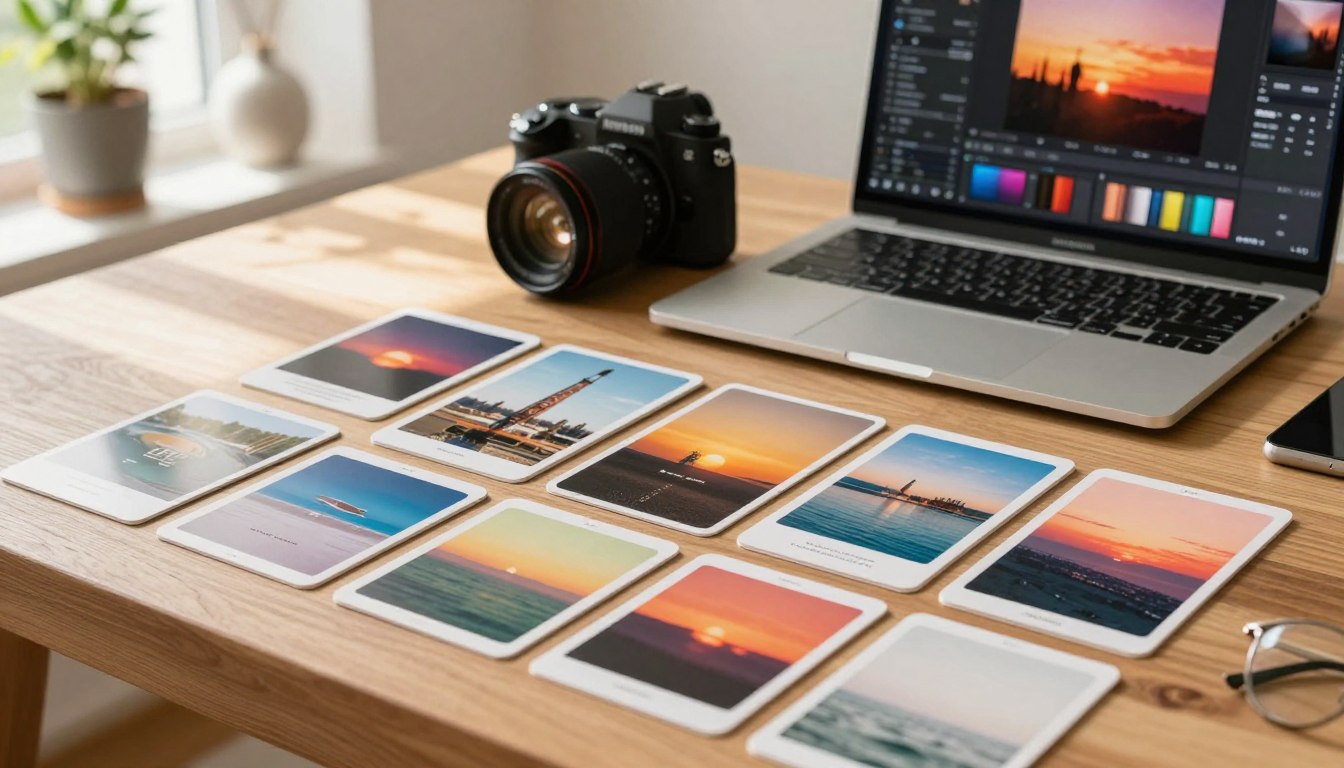
Capturing the perfect shot is only the beginning of your creative journey. Whether you are a beginner or a seasoned photographer, having the right photo editing software makes all the difference in your final output.

Picwox offers a versatile and user-friendly platform designed to simplify complex tasks. By using an intuitive design and smart automation, this tool helps you achieve professional-grade results without a steep learning curve.
Choosing a reliable AI photo enhancer is the first step toward unlocking your full potential. Picwox provides the modern digital tools you need to transform ordinary images into stunning works of art with just a few clicks.
Key Takeaways
- Picwox serves both beginners and experienced photographers with ease.
- Smart automation simplifies complex editing tasks for faster workflows.
- Using an AI photo enhancer ensures high-quality results every time.
- The platform features an intuitive design that removes technical barriers.
- Modern digital tools help you maximize your creative potential effortlessly.
Getting Started with the Picwox Interface
Stepping into the digital studio for the first time is an exciting moment for any creator. Whether you are a beginner or a seasoned pro, our online image editor is designed to keep your workflow smooth and stress-free. By familiarizing yourself with the layout, you can focus entirely on your creative vision.
Navigating the Dashboard
The dashboard is built with simplicity in mind, ensuring that every tool you need remains within reach. You will find a clean, organized sidebar that houses all your primary editing functions. This intuitive design allows you to locate specific features without feeling overwhelmed by complex menus.
Everything in this online image editor is categorized to save you time. From basic adjustments to advanced filters, the interface guides your eyes naturally across the screen. You can quickly toggle between different workspaces to keep your project area clutter-free.
Uploading Your First Image
Ready to begin your creative journey with Picwox? Importing your files is a straightforward process that takes only a few seconds. Simply click the prominent “Upload” button located at the top of your screen to select a file from your device.
Once you select your image, Picwox automatically prepares it for editing in the main canvas. You can also drag and drop files directly into the browser window for added convenience. Now that your image is loaded, you are fully prepared to start enhancing your visuals with professional precision.
Mastering Basic Photo Adjustments
Transforming your digital photos starts with mastering the essential tools found in modern photo editing software. Achieving a balanced look requires you to understand how small changes can significantly impact the final result. By focusing on these core skills, you build a strong foundation for all your future creative projects.
Cropping and Rotating for Better Composition
Effective photo composition techniques are vital for guiding the viewer’s eye toward your main subject. Cropping allows you to remove distracting elements from the edges of your frame, creating a cleaner and more focused image. You can also use the rule of thirds to place your subject in a more visually appealing position.
Rotating your image is equally important when the horizon line appears tilted or uneven. A perfectly straight horizon provides a sense of stability and professionalism to your landscape shots. Always check your alignment before moving on to color or light adjustments to ensure your base image is solid.
Adjusting Brightness, Contrast, and Saturation
Once your composition is set, you can fine-tune the mood of your photo using light and color controls. Adjusting brightness helps you recover details in dark areas or soften highlights that are too intense. These photo composition techniques work best when you balance the overall exposure of the scene.
Contrast adds depth by making the darks darker and the lights brighter, which helps your subject pop from the background. Saturation controls the intensity of the colors, allowing you to make them vibrant or muted depending on your desired aesthetic. Using this reliable photo editing software, you can easily experiment with these sliders to find the perfect balance.
| Adjustment Tool | Primary Function | Best Use Case |
| Brightness | Overall light levels | Fixing underexposed shots |
| Contrast | Difference between tones | Adding depth and drama |
| Saturation | Color intensity | Making colors pop |
| Crop/Rotate | Framing and alignment | Improving composition |
Utilizing Advanced AI Enhancement Tools
Harnessing the power of intelligent automation allows you to elevate your visual content effortlessly. Modern technology now enables users to perform complex edits in seconds that previously required hours of manual labor. By integrating these smart features into your workflow, you can achieve high-end results with minimal effort.
Automatic Image Upscaling
Low-resolution files often suffer from pixelation when enlarged, but our advanced AI photo enhancer solves this common problem. This tool intelligently analyzes your image to add crisp detail and clarity where it was previously missing. Using an effective image upscaling tool ensures your photos look sharp on any screen or print format.
Removing Unwanted Objects with AI
Distractions in the background can easily ruin an otherwise perfect shot. Our AI-driven object removal feature allows you to erase unwanted elements seamlessly. Simply highlight the area you wish to remove, and the software will intelligently fill in the space based on the surrounding pixels. This creates a clean and professional composition every single time.
Background Removal and Replacement Techniques
Isolating subjects from their surroundings is a vital skill for modern creators. With our specialized background removal software, you can extract a person or object from a busy scene in just one click. Once the subject is isolated, you have the freedom to place them against a new backdrop or a solid color for a studio-quality look.
| Feature | Primary Benefit | Best Use Case |
| AI Upscaling | Increases resolution | Old or blurry photos |
| Object Removal | Cleans composition | Removing photobombers |
| Background Swap | Isolates subjects | Product photography |
Applying Professional Filters and Presets
Elevate your visual storytelling by mastering the art of professional filters and presets. These tools serve as the foundation for maintaining a consistent visual style across your entire portfolio or social media feed. By utilizing high-quality photo filter presets, you can ensure that every image you share aligns perfectly with your unique creative vision.

Choosing the Right Aesthetic for Your Brand
Your brand identity is often the first thing your audience notices when they visit your profile. Selecting a specific look helps your followers recognize your content instantly, which is a key component of successful aesthetic photo editing. Whether you prefer moody, dark tones or bright, airy colors, consistency is the secret to building a loyal following.
Consider the emotions you want your brand to evoke before settling on a style. A warm, vintage look might suit a lifestyle blog, while clean, high-contrast edits often work best for professional portfolios. Once you identify your core aesthetic, stick to it to create a cohesive narrative that resonates deeply with your target audience.
Customizing Preset Intensity
While presets provide a fantastic starting point, they are rarely a one-size-fits-all solution. You should always adjust the settings to match the specific lighting and composition of your individual shots. Learning to control the intensity of your photo filter presets is essential for achieving a natural, polished finish rather than an overly processed look.
Most editing platforms allow you to dial back the strength of a filter with a simple slider. By reducing the opacity or intensity, you can blend the effect seamlessly with your original image data. This subtle approach to aesthetic photo editing ensures that your personal touch remains visible, keeping your work authentic and professional.
Retouching Portraits Like a Pro
Creating stunning portraits requires a delicate balance between correction and natural beauty. When you approach professional photo retouching, the goal is to highlight the subject’s best features while keeping the final image looking authentic. A light touch often yields the most impressive results, ensuring your work remains grounded in reality.
Skin Smoothing and Blemish Removal
Effective skin retouching starts with removing distractions without erasing the natural texture of the face. You should focus on clearing temporary blemishes while leaving pores and fine lines intact to maintain a lifelike appearance. Using specialized tools allows you to soften skin tones gently, which is one of the most essential portrait editing tips for beginners and experts alike.
Avoid the common mistake of over-smoothing, which can make a subject look like plastic. Instead, apply adjustments in small, controlled increments to preserve the character of the skin. This careful method ensures that your portraits look polished and high-end rather than artificial.
Enhancing Eyes and Teeth Whitening
The eyes are often the focal point of any portrait, so giving them a subtle boost can make a massive difference. You can brighten the iris and sharpen the details to create a captivating gaze that draws the viewer in immediately. Remember to keep these adjustments subtle to avoid an unnatural, glowing effect that distracts from the subject.
Teeth whitening is another area where moderation is key to successful professional photo retouching. Rather than making teeth pure white, aim for a natural brightness that complements the skin tone. Following these portrait editing tips will help you achieve clean, magazine-quality results that truly showcase the unique personality of your subjects.
Working with Layers and Text Overlays
Mastering graphic design layers is the secret to creating complex compositions without permanently altering your original image files. By stacking elements, you gain the freedom to experiment with different layouts and effects while keeping your base photo safe. This non-destructive workflow is a game-changer for anyone looking to produce high-quality visual content.
Adding Typography to Your Visuals
Incorporating typography in photos is an effective way to communicate your brand message or add context to your imagery. When adding text, always prioritize readability by choosing fonts that contrast well with the background colors. You should also consider the hierarchy of your text, ensuring the most important information stands out clearly to the viewer.
For professional results, try to align your text with the natural lines or focal points within your image. Using typography in photos effectively can turn a simple snapshot into a compelling marketing graphic or a social media post that stops the scroll.
Managing Layer Opacity and Blending Modes
Once you have your elements in place, you can refine their appearance by adjusting layer opacity and blending modes. Lowering the opacity allows you to create subtle watermarks or dreamy, ethereal effects. Meanwhile, blending modes change how your layer interacts with the pixels underneath, opening up endless creative possibilities.
Experimenting with these settings helps you achieve unique artistic results that standard filters simply cannot replicate. Refer to the table below to understand how different modes can influence your final composition.
| Blending Mode | Primary Effect | Best Use Case |
| Multiply | Darkens the image | Adding shadows or textures |
| Screen | Lightens the image | Creating light leaks or glows |
| Overlay | Increases contrast | Enhancing depth and color |
| Soft Light | Subtle contrast boost | Polishing skin or soft details |
Optimizing Images for Social Media Platforms
Your visual presence on social media depends heavily on how well you prepare your images. When you use an online image editor, you gain the control needed to make your content shine on any feed. Proper preparation ensures that your hard work is not ruined by automatic compression or awkward cropping.
Resizing for Instagram and Facebook
Every platform has specific requirements that dictate how your images appear to your followers. Engaging in social media image optimization is the best way to prevent unwanted pixelation or blurry results. By setting the correct dimensions before you upload, you maintain full control over your composition.
Consider these standard guidelines for your posts:
- Instagram Square: Use 1080 x 1080 pixels for the best clarity.
- Instagram Portrait: Aim for 1080 x 1350 pixels to maximize screen space.
- Facebook Feed: A 1200 x 630 pixel ratio works best for shared links and images.
Exporting Files for Maximum Quality
Once your edits are complete, the final step is a high-quality photo export. Choosing the right file format and compression level makes a massive difference in how sharp your image looks on mobile devices and desktops. Always aim for a balance between file size and visual fidelity to ensure fast loading times without sacrificing detail.
Follow these tips to keep your images looking professional:
- Select JPEG for photos to keep file sizes manageable.
- Use PNG if your image contains text or transparent elements.
- Set your resolution to 72 DPI, which is the standard for web viewing.
By following these simple technical steps, you ensure that your brand looks consistent across all channels. Your followers will appreciate the crisp, clear visuals that represent your unique style.
Batch Processing to Save Time
If you find yourself repeating the same edits on dozens of images, it is time to change your strategy. Manually adjusting every single file is not only tedious but also prone to inconsistency. By leveraging batch photo processing, you can apply your favorite styles to an entire folder of images in just a few clicks.

Applying Uniform Edits to Multiple Photos
The key to a professional look is consistency across your entire gallery. When you use the sync feature, you can take the adjustments from one master image and push them to every other photo in your set. This ensures that your lighting, color balance, and contrast remain perfectly matched.
Efficiency is the primary goal here. You can select a group of photos, apply a preset, and watch as the software updates each file instantly. This method is particularly useful for event photography or large product shoots where the lighting conditions remain stable.
Managing Large Projects Efficiently
Success in digital photography often depends on efficient workflow management. Keeping your files organized before you even start editing will save you hours of frustration later. We recommend using a clear folder structure and naming convention to keep track of your assets.
To keep your projects running smoothly, consider these best practices:
- Organize by date or event: Group your raw files into specific folders immediately after import.
- Use smart naming: Rename your files in bulk to make searching for specific shots much faster.
- Create custom presets: Save your most-used adjustments as presets to speed up your future edits.
- Clear your cache: Regularly clean up your temporary files to keep the software running at peak performance.
By mastering these tools, you can spend less time on repetitive tasks and more time on creative endeavors. Implementing efficient workflow management allows you to handle larger volumes of work without feeling overwhelmed. When you automate the technical side of your editing, your artistic vision finally takes center stage.
Creative Effects and Artistic Filters
Beyond basic adjustments, you can turn ordinary snapshots into captivating works of art. Sometimes a photo needs a unique touch to stand out from the crowd and grab the viewer’s attention. By experimenting with advanced tools, you can push the boundaries of professional photo retouching to create something truly memorable.
Transforming Photos into Digital Art
You do not need to be a professional painter to achieve a gallery-worthy look. With the right software, digital art creation becomes an accessible process for everyone. You can apply specialized filters that mimic oil paintings, watercolors, or sketch styles to give your images a fresh perspective.
Consider these ways to enhance your creative workflow:
- Apply stylized filters to soften harsh edges and create a painterly aesthetic.
- Use color grading tools to shift the mood of your image toward a surreal palette.
- Combine multiple artistic layers to build depth and complexity in your composition.
Using Light Leaks and Texture Overlays
If you want to add a vintage or cinematic feel to your work, look no further than light leak effects. These overlays simulate the look of old film cameras, adding warmth and a sense of nostalgia to your digital files. They are perfect for softening a sharp image or adding a dreamy atmosphere to your portraits.
Texture overlays, such as film grain, dust, or paper grit, provide an extra layer of realism. When you combine these with light leak effects, you create a cohesive, professional look that feels authentic. This approach is a fantastic way to elevate your professional photo retouching skills while exploring new styles of digital art creation.
Troubleshooting Common Editing Challenges
Even the most skilled photographers occasionally deal with tricky lighting situations that require a bit of extra help. When your camera settings do not align with the environment, you might end up with images that look washed out or far too dark. Fortunately, modern photo editing software provides the tools necessary to turn these mistakes into high-quality visuals.
Effective image troubleshooting starts with understanding how to balance your exposure levels. By mastering these simple adjustments, you can salvage shots that once seemed destined for the trash folder.
Fixing Overexposed or Underexposed Shots
When a photo is overexposed, the highlights often lose all texture, appearing as flat white patches. You can usually recover this data by lowering the exposure slider or specifically targeting the highlights in your editing panel. Conversely, underexposed shots require a gentle boost in exposure to reveal the hidden details in the mid-tones.
To achieve the best results, consider these quick tips for balancing your lighting:
- Check your histogram: Ensure your data is not bunched up against the far left or right edges.
- Use the exposure slider: Make small, incremental changes to avoid introducing digital noise.
- Adjust contrast: Sometimes, a slight reduction in contrast helps bring back balance to a harsh image.
Restoring Detail in Shadowed Areas
Shadows often hide important elements of your composition, especially in high-contrast scenes. Using the shadow recovery tool in your photo editing software allows you to brighten these dark regions without affecting the rest of the image. This process is essential for image troubleshooting when you want to reveal textures in dark clothing or deep background areas.
Be careful not to push the shadow slider too far, as this can create an unnatural, flat look. Instead, try to find a sweet spot where the details become visible while maintaining the natural depth of the scene. Consistent practice with these sliders will help you gain confidence in rescuing your favorite photos from challenging lighting conditions.
Conclusion
Transforming raw images into polished masterpieces is now within your reach. Picwox provides a robust set of tools designed to simplify complex editing tasks for every user.
You possess the power to elevate your visual storytelling by applying the techniques explored throughout this guide. Consistent practice with Picwox will help you develop a distinct aesthetic that sets your work apart on any platform.
Take the next step in your creative journey by opening your favorite image in the editor today. Experimenting with these features allows you to refine your skills while achieving professional results with minimal effort.
Your audience deserves high-quality visuals that capture your unique vision. Start using Picwox now to bring your artistic ideas to life and share your best work with the world.
FAQ
Is Picwox suitable for someone with no prior editing experience?
Absolutely! Picwox is designed as a versatile and user-friendly platform that caters to both beginners and seasoned photographers. Our online image editor uses smart automation and an intuitive design to simplify complex tasks, making it easy to achieve professional-grade results without a steep learning curve.
How do I begin my first project on the platform?
Getting started is a breeze! Once you log in, you can explore the primary workspace via the dashboard. To start your creative journey, simply use the “Upload” feature to bring your first image into the editor. This foundational layout helps you quickly locate all the tools you need for your specific project.
What basic adjustments can I make to improve my photo composition?
You can easily master fundamental photo composition techniques by using our cropping and rotating tools to draw focus to your subject. Additionally, you can fine-tune the brightness, contrast, and saturation to ensure your visual content looks perfectly balanced and vibrant.
Can Picwox help me fix low-resolution or blurry images?
Yes, it can! Our advanced AI photo enhancer includes an automatic image upscaling tool that breathes new life into low-resolution files by adding crisp, clear detail. It is a powerful way to enhance image quality in just a few seconds.
Is it possible to remove distracting elements or change the background?
It certainly is. Our background removal software allows you to isolate subjects or swap backgrounds seamlessly. You can also use the AI-driven tools to remove unwanted objects, saving you the time and effort of manual retouching while delivering high-end results.
How can I maintain a consistent look for my brand across different images?
To ensure your images resonate with your audience, you can apply professional filters and presets. For a more natural look, you can customize the preset intensity to suit your specific aesthetic photo editing goals, helping you maintain a cohesive visual style across your portfolio.
What tools are available for professional portrait retouching?
We offer a variety of professional photo retouching techniques to help your subjects look their best. This includes skin smoothing, blemish removal that preserves natural texture, eye enhancement, and subtle teeth whitening for a polished, magazine-quality finish.
Can I add text or create marketing graphics within the app?
Yes, you can utilize graphic design layers to stack different elements and add typography in photos. By managing layer opacity and blending modes, you can create complex, impactful visuals perfect for marketing materials or social media graphics.
How do I ensure my photos look great on Instagram and Facebook?
We specialize in social media image optimization. You can quickly resize your images to the specific dimensions required by Instagram and Facebook to prevent pixelation. When you are finished, our high-quality photo quality export ensures your work looks sharp on any device.
I have hundreds of photos to edit; is there a way to speed up the process?
Our batch photo processing feature is the ultimate time-saver for large projects. It allows you to apply uniform edits to multiple photos simultaneously, ensuring a cohesive look across your entire set while you focus on more creative endeavors.
Does Picwox offer any artistic or “vintage” effects?
Definitely! You can transform your photos into digital art using our artistic filters. To achieve a cinematic or vintage feel, try applying light leak effects or texture overlays to add unique flair and depth to your visual storytelling.
What should I do if my photo is too dark or washed out?
Our image troubleshooting tools are perfect for fixing overexposed or underexposed shots. You can easily recover lost information and restore detail in shadowed areas, ensuring that your favorite shots are saved regardless of the initial lighting conditions.
